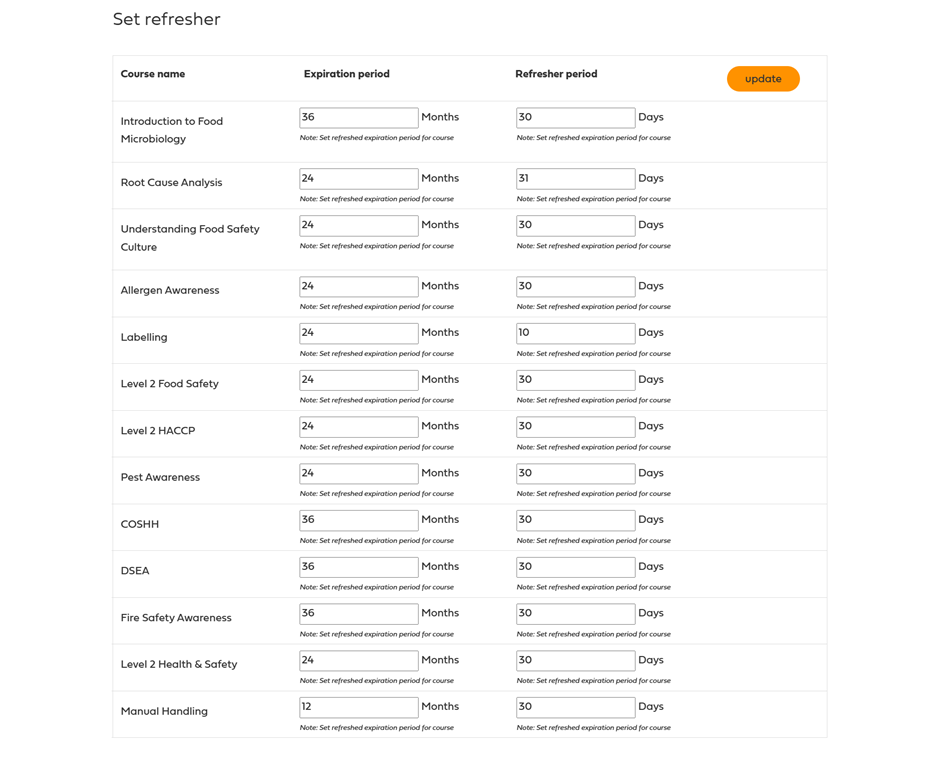
The Set Refresher page allows Group Leaders to define when users within their group should retake courses to maintain compliance and keep their knowledge up to date.
Many training courses have a validity period and may need to be refreshed after a certain amount of time. Using the Set Refresher page, Group Leaders can create their own refresher schedule for each assigned course without affecting any other groups on the platform.
This feature gives group leaders greater control over training compliance requirements and helps ensure employees are reminded to complete refresher training before certificates expire.
What Is a Refresher Period?
A refresher period is the amount of time before a course expires when users should be prompted to complete the course again.
For example:
- A course may remain valid for 24 months after completion.
- A refresher reminder may be set for 30 days before the expiry date.
- Users will then be notified that refresher training is required before their certification expires.
This helps organisations maintain continuous compliance and reduce the risk of employees holding expired certifications.
How Does the Set Refresher Page Work?
The Set Refresher page displays all courses assigned to your group.
For each course, you can configure:
Expiration Period
The number of months a completed course remains valid.
Examples:
- 12 Months
- 24 Months
- 36 Months
Once this period has passed, the course is considered expired.
Refresher Period
The number of days before the expiry date when the refresher process should begin.
Examples:
- 10 Days
- 30 Days
- 60 Days
Users will be flagged as requiring refresher training during this period.
Understanding the Set Refresher Table
Each row represents a course assigned to your group.
The table contains:
Field | Description |
Course Name | The training course assigned to your group |
Expiration Period | How long the course remains valid after completion |
Refresher Period | How many days before expiry the refresher process begins |
Update Button | Saves the refresher settings for your group |
Example:
Course | Expiration Period | Refresher Period |
Level 2 Food Safety | 24 Months | 30 Days |
This means:
- The certificate remains valid for 24 months.
- Users will be marked as requiring refresher training 30 days before the certificate expires.
How to Set a Refresher Period
Step 1: Open the Set Refresher Page
Log in as a Group Leader and navigate to the Set Refresher section.
Step 2: Locate the Course
Find the course you wish to configure.
Step 3: Enter the Expiration Period
Enter the number of months the course should remain valid.
Example:
- 12 Months
- 24 Months
- 36 Months
Step 4: Enter the Refresher Period
Enter the number of days before expiry when users should be prompted to refresh the course.
Example:
- 10 Days
- 30 Days
- 60 Days
Step 5: Save the Changes
Click Update to save the settings.
The refresher schedule will now apply to users within your group.
Group-Specific Refresher Settings
One of the most important things to understand is that refresher settings are configured at the group level.
This means:
- Each group leader controls refresher periods for their own group.
- Changes affect only users within that specific group.
- Other groups are not affected by your settings.
Example
Group A and Group B both have the same course assigned.
Group A Settings
- Expiration: 24 Months
- Refresher: 30 Days
Group B Settings
- Expiration: 36 Months
- Refresher: 60 Days
Although both groups use the same course, their refresher schedules are completely independent.
How Refresher Settings Affect Users
When a user completes a course:
- The completion date is recorded.
- The expiry date is calculated using the expiration period.
- The system monitors the refresher period.
- When the refresher window begins, the user is marked as requiring refresher training.
- Once the user completes the course again, the validity period is renewed.
How Refresher Status Appears on the Course Dashboard
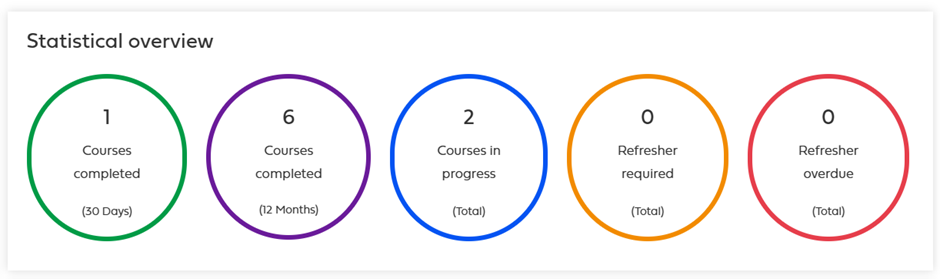
Course dashboards may display refresher-related statistics, including:
Refresher Required
Shows users or courses that are approaching their expiry date and are currently within the refresher period.
These users should complete refresher training before the certification expires.
Refresher Overdue
Shows users whose certification has already passed its expiry date.
These users may need immediate action to regain compliance.
Best Practice Recommendations
To maintain compliance effectively:
Review Refresher Settings Regularly
Ensure refresher periods match your organisation's training requirements.
Allow Enough Time Before Expiry
Setting reminders too close to the expiry date may not provide users enough time to complete training.
A refresher period of 30 days is commonly used for many courses.
Monitor Refresher Required Courses
Check refresher reports regularly to identify users who need to retake training.
Keep Expiration Periods Consistent
Where possible, use consistent expiry periods across similar courses to simplify compliance management.
Summary
The Set Refresher page allows group leaders to control how frequently users within their group must renew training certifications. By defining course expiry periods and refresher windows, organisations can maintain compliance, track certification validity, and ensure users complete refresher training before courses become overdue.
Most importantly, refresher settings are group-specific, meaning each group can create training schedules that match its own operational and compliance requirements without affecting any other group on the platform.
Was this article helpful?
That’s Great!
Thank you for your feedback
Sorry! We couldn't be helpful
Thank you for your feedback
Feedback sent
We appreciate your effort and will try to fix the article