Understanding the Account Information Panel
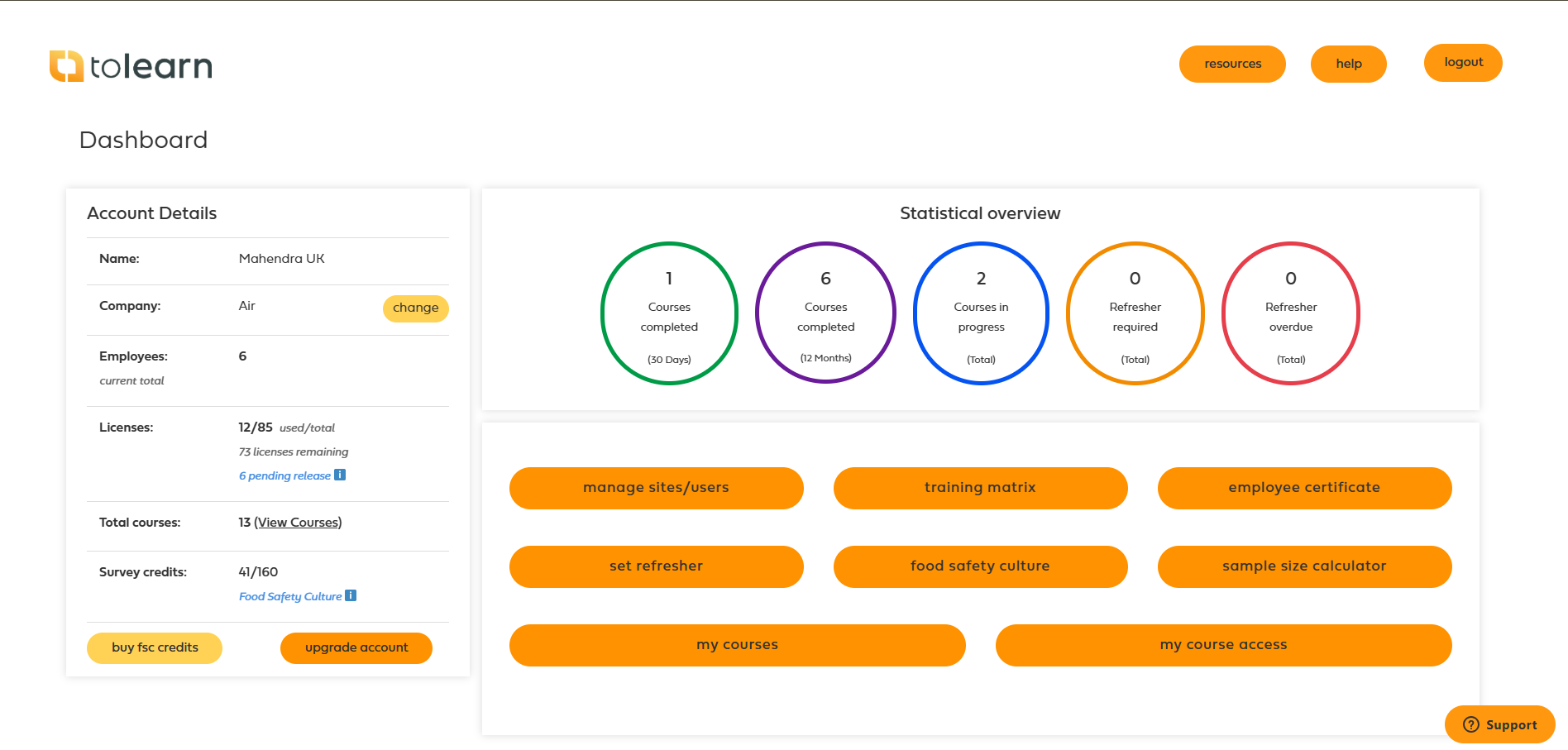
The Account Information section provides an overview of your organisation and available resources.
Company Name
This displays the name of your organisation or group.
If your academy allows it, the company name can be updated by selecting the Change option next to the company name.
Employees
This shows the number of users that can be assigned licences within your organisation.
Licences
The licence counter displays how many licences are currently being used and how many are available.
Example:
25 / 200
This means:
- 25 licences are currently assigned to users.
- 175 licences remain available.
Licences are consumed when users are added to the platform.
Pending Release
When a user is deleted, their licence is not immediately returned to the available licence pool.
Instead, the licence enters a pending release period.
You can select 'Pending Release' to view:
- Which licenses are awaiting release.
- How much time remains before each licence becomes available again.
Total Courses
Displays the total number of courses available to your organisation.
Selecting View Courses will show the courses currently assigned to your group.
Survey Credits
Displays the number of Food Safety Culture survey credits available.
Survey credits are used when food safety culture questionnaires are completed.
Buy FSC Credits
Allows additional food safety culture survey credits to be purchased when required.
Upgrade Account
For organisations using a trial account, this option provides access to account upgrade options.
Understanding the Monthly Statistical Overview
The Monthly Statistical Overview provides a visual summary of training activity across your organisation.
The dashboard displays:
Completed Courses
Shows how many courses have been successfully completed by users.
Courses In Progress
Shows courses that have been started but not yet completed.
Refresher Required
Shows users who are approaching their course refresher deadline.
These users should complete their refresher training before the course expires.
Refresher Overdue
Shows courses that have passed their expiry date and now require retraining.
Monitoring these figures regularly helps identify potential compliance risks before they become overdue.
Understanding the Dashboard Modules
The dashboard provides quick access to the main platform features.
Manage Sites and Users
This area allows group leaders to:
- Add and manage users.
- Create and manage sites.
- Assign Site Leaders.
- Bulk upload users.
- Edit user information.
- Archive users.
- View archived users.
- Manage course access.
Training Matrix
The training matrix provides a complete overview of training activity within your group.
From this report you can:
- Monitor course progress.
- View training status.
- Identify overdue training.
- Export reports.
- Track compliance across users and sites.
Employee Certificates
Provides access to employee certificates.
Group leaders can:
- Search for certificates.
- Download certificates.
- Review completed training records.
Set Refresher
Allows refresher periods to be configured for courses within your group.
Refresher settings determine:
- When users are notified that retraining is required.
- When a course becomes overdue.
- How refresher statuses appear within reports.
Food Safety Culture
Allows Food Safety Culture questionnaires to be launched and managed.
From this area you can
- Launch questionnaires.
- Monitor responses.
- Review feedback.
- Analyse culture maturity.
- Generate food safety culture reports.
Sample Size Calculator
Helps determine how many questionnaire responses are required to achieve statistically reliable food safety culture results.
My Courses
Displays courses assigned to your account.
You can start, continue and complete training directly from this area.
My Course Access
Allows group leaders to control which purchased courses appear within their own course list.
This does not affect course access for other users.
Understanding the Top Toolbar
The top toolbar provides quick access to key platform functions.
Dashboard
Returns you to the main dashboard from any module.
Guidance/Help
Provides access to platform guidance and help documentation.
Examples include:
- Adding users.
- Managing sites.
- Training matrix guidance.
- Food safety culture guidance.
Logout
Logs you out of the platform securely.
Getting Support
If you require assistance using the platform, select the Support option.
The support area can be used to:
- Report issues.
- Ask questions.
- Request assistance.
- Contact the platform support team.
Platform Variations
Dashboard layouts and available modules may vary between academies.
Depending on your academy, additional modules may be available, while some modules may not be displayed.
The overall purpose of the dashboard remains the same: providing a central location for managing users, training, compliance and reporting activities.
Was this article helpful?
That’s Great!
Thank you for your feedback
Sorry! We couldn't be helpful
Thank you for your feedback
Feedback sent
We appreciate your effort and will try to fix the article