This guide explains how user information can be updated after an account has been created.
Employee information may need to be updated for a variety of reasons, including role changes, site transfers, email changes, training requirements, or account management activities.
Keeping employee records accurate helps ensure that training assignments, reporting, certificates, compliance records, and user access remain up to date.
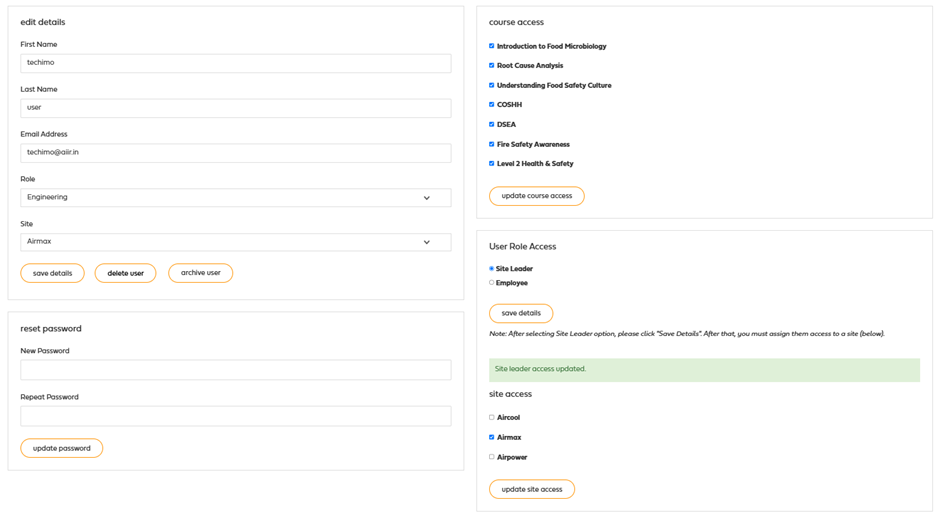
Editing a User
Group leaders can edit user accounts at any time.
To edit a user:
Navigate to the Users table.
Locate the user you wish to update.
Click the Edit button.
The Edit User page will open, allowing the user's information to be reviewed and updated.
Information That Can Be Updated
Depending on permissions, the following information can be modified:
First Name
Last Name
Email Address
Password
User Role
Site Assignment
Course Access
Food Safety Culture Role
Site Access
Changes are saved immediately once the user record is updated.
Managing Course Access
Training requirements may change over time as employees move roles or take on additional responsibilities.
From the Edit User page, Group Leaders can:
Assign additional courses.
Remove course access.
Update training requirements.
Control which courses are available to a user.
Only assigned courses will appear within the user's account.
Updating Site Access
Users can be moved between sites or granted access to additional sites where required.
This is particularly useful when:
Employees transfer locations.
Managers become responsible for additional sites.
Site leaders need access to different teams.
Updating site access ensures that users can only view information relevant to their assigned locations.
Resetting Passwords
If a user is unable to access their account, their password can be updated from the Edit User page.
Once saved, the user can log in using their new password.
Archiving Users
When an employee no longer requires access to the platform, the account can be archived.
Archiving a user:
Prevents the user from logging in.
Retains historical training records.
Preserves certificates and compliance history.
Maintains reporting accuracy.
Allows records to remain available for audit purposes.
Archived users remain stored within the platform until further action is taken.
Deleting Users
Where appropriate, users can also be deleted from the platform.
Before deleting a user, it is recommended that administrators review any reporting, training, or compliance requirements associated with that account.
Deleted users may impact licence allocation and licence release processes depending on the platform configuration.
Best Practice
When making employee changes:
Keep user details accurate and up to date.
Review training requirements after role changes.
Update site assignments when employees move locations.
Archive users rather than deleting them when historical records may be required.
Regularly review user access permissions.
Maintaining accurate user records helps ensure that reporting, compliance monitoring, training management, and audit preparation remain reliable and up to date.
Platform Variations
The process for updating users may vary between academies and platform configurations.
Some platforms allow leaders or managers to make user changes directly, while others may require changes to be completed by a platform administrator or support team.
If you are unable to edit a user account, please refer to your platform's support documentation or contact the platform administrator for assistance.
Was this article helpful?
That’s Great!
Thank you for your feedback
Sorry! We couldn't be helpful
Thank you for your feedback
Feedback sent
We appreciate your effort and will try to fix the article