This guide explains how to add multiple users at once using the bulk upload feature.
Bulk User Management is designed to help organisations efficiently onboard large numbers of employees without having to create each user individually.
Before You Start
Before uploading users, ensure that sufficient licenses are available on your account.
Each user added to the platform consumes one license.
For example:
You can add only 58 employee(s).
This means there are currently 58 available licenses remaining on the account. If your upload file contains more users than the available license count, some users may not be added.
You can review your available license count from the Licenses section of the platform.
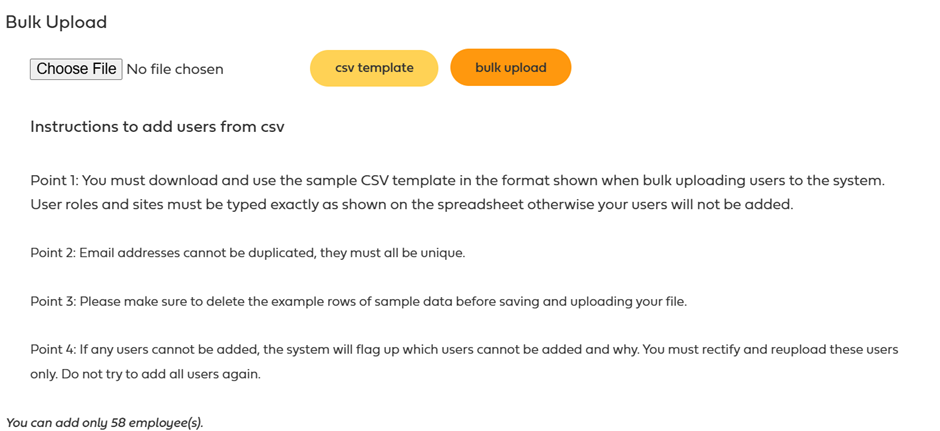
Download the Sample CSV Template
Before creating your upload file, you must download and use the sample CSV template provided within the Bulk User Management area.
The template contains the required format and column structure needed by the system.
Using a different format may cause the upload to fail.
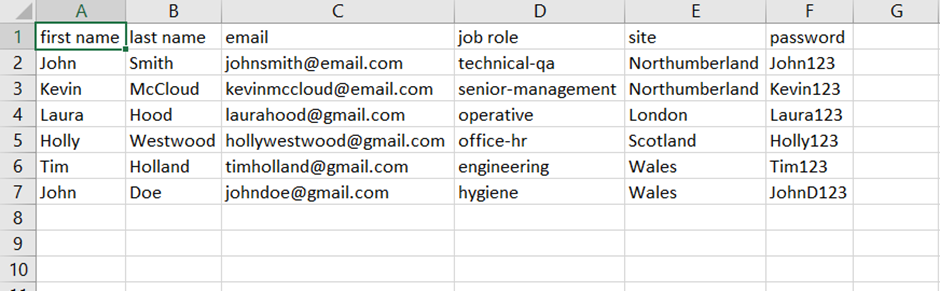
Completing the CSV File
When preparing your CSV file:
Enter user information in the correct columns.
Ensure all required fields are completed.
Use valid email addresses.
Verify that user roles are entered correctly.
Verify that site names match existing sites within the platform.
Important
User Roles and Site Names must be entered exactly as shown within the platform.
Any differences in spelling, spacing, or formatting may prevent users from being created successfully.
Remove Sample Data
The CSV template contains example rows to demonstrate the required format.
Before uploading your file:
Remove all sample users.
Keep the column headings intact.
Save the file in CSV format.
Failure to remove the sample data may result in unwanted user accounts being created.
Email Address Requirements
Every user must have a unique email address.
The system will not allow duplicate email addresses.
Before uploading your file:
Check for duplicate email addresses within the spreadsheet.
Check that the email address is not already associated with an existing user account.
Duplicate email addresses will cause validation errors during the upload process.
Uploading the File
To upload users:
Navigate to the Bulk User Management section.
Download the sample CSV template.
Complete the spreadsheet.
Remove the example rows.
Save the file as a CSV.
Upload the completed file.
Review any validation messages returned by the system.
The system will attempt to create each user contained within the file.
Upload Errors
If any users cannot be added, the platform will display information explaining why the upload failed.
Common reasons include:
Duplicate email addresses.
Invalid site names.
Invalid user roles.
Missing required information.
Insufficient available licences.
Correcting Failed Users
If some users fail during the upload process:
Review the error message provided.
Correct the affected users.
Create a new CSV containing only the failed users.
Re-upload the corrected file.
Important
Do not re-upload all the users again.
Users that were successfully created do not need to be uploaded a second time.
Only re-upload the users that failed validation.
Best Practice
For successful bulk uploads:
Download a fresh copy of the sample CSV template.
Verify licence availability before uploading.
Remove all example data before saving.
Ensure email addresses are unique.
Check user roles and site names carefully.
Review validation errors before attempting another upload.
Re-upload only failed users after corrections have been made.
Following these steps will help ensure a smooth and efficient user onboarding process while minimising upload errors and duplicate records.
Platform Variations
Bulk user management features may vary between academies and platform configurations.
Some platforms allow administrators to import users using CSV files, while others may require users to be created individually or by a platform administrator.
If bulk upload functionality is not available within your academy, please contact your platform administrator or support team for guidance on adding multiple users.
Was this article helpful?
That’s Great!
Thank you for your feedback
Sorry! We couldn't be helpful
Thank you for your feedback
Feedback sent
We appreciate your effort and will try to fix the article